Adding a New Template to Plugins
-
Log in using Admin credentials.
-
Go to About page.
-
Click Live to edit the page then tick Structures.
-
Two plugins will came out, the Left with a picture template and Right plugins with a text.

-
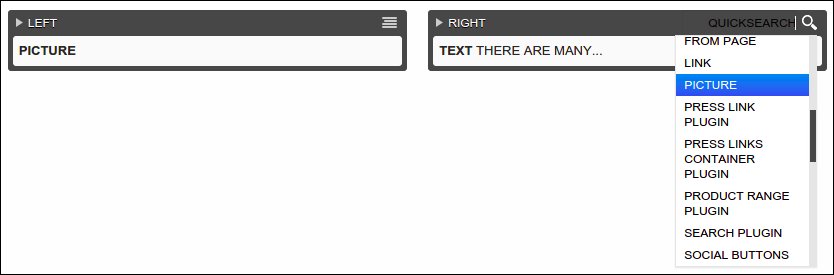
To add a new template, simply move your cursor over either Left or Right plugin. As an example, I will select Right plugin. Under Generic are the list of templates that you can use to display the content of your page. I suggest the following 2 useful templates:
- Picture- holds the image of your page
- Text- displays the message of your page
- Link- has the ability to direct you to web address
-
Once you finish to select a template and enter inputs to it, don't forget to click Save and Publish Changes to succesfully update the page.
Note: Active or existing template must be deleted first before you select a new one to avoid overlapping of its components.
Changing the Picture on Left Plugin
-
Log in using Admin credentials.
-
Go to About page. n
-
Click Live to edit the page then tick Structures.
-
Two plugins will came out, the Left with a picture template and Right plugins with a text.
-
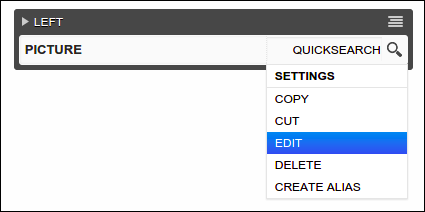
To change the picture, hover over the menu of Picture template and select Edit.
-
Picture window will pop out, click Choose File and upload a new photo.
-
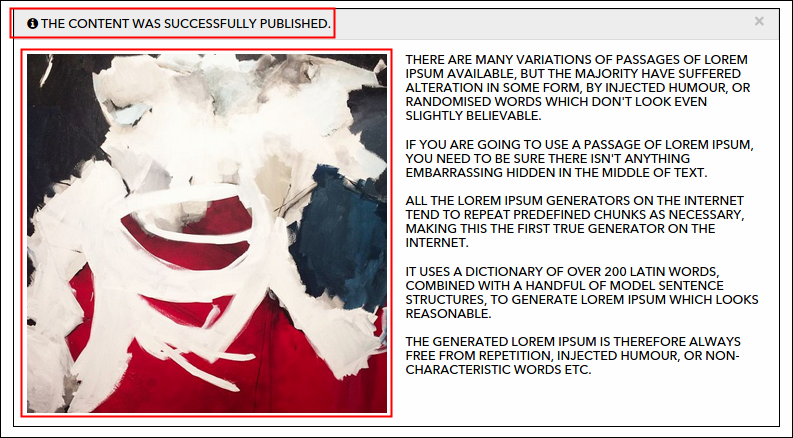
Click Save, wait til the page finish its loading. Click Publish Changes to post your made changes. A confirmation message will appear and voila, image is now changed to new one.
Updating the Text on Right Plugin
-
Log in using Admin credentials.
-
Go to About page.
-
Click Live to edit the page then tick Structures.
-
Two plugins will came out, the Left with a picture template and Right plugins with a text.
-
To update the text, hover over the menu of Text template and select Edit.
-
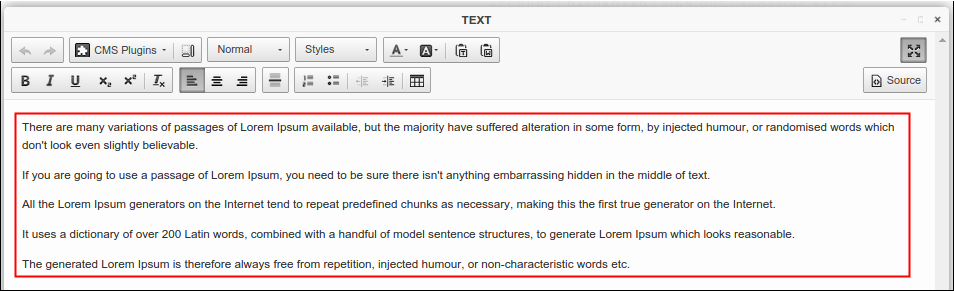
Text window will pop out, you may now update the text or message of this page.
-
Click Save, wait til the page finish its loading. Click Publish Changes to post your made changes. A confirmation message will once again appear and text is now updated.
Deleting an Existing Template
-
Log in using Admin credentials.
-
Go to About page.
-
Click Live to edit the page then tick Structures.
-
Two plugins will came out, the Left with a picture template and Right plugins with a text.
-
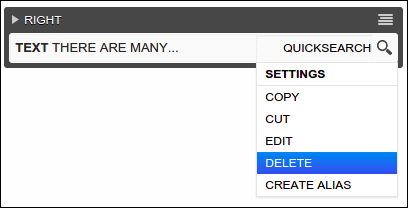
To delete an active template, move your cursor over either Picture or Text template and select Delete. As an example, let's delete the Text template.
-
A message will pop out to validate your action, click Yes, I'm sure to continue.
-
The page will load for a while, wait to finish. Under Right plugin, you can notice that Text template are no longer there and that means you successfully removed the template.
-
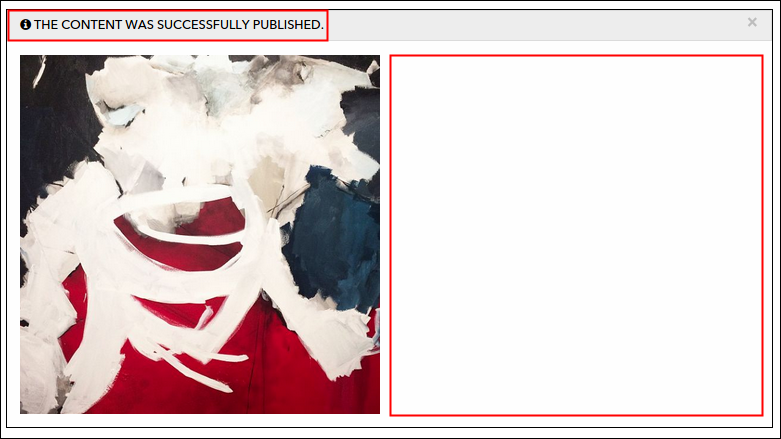
To publish the deletion you made, click the Publish Changes button. As the page reloads, a confirmation message will appear and you can see that right section of your page is now blank and empty.