Managing Product Alerts
These product alerts were created by customers or page visitors who requested to be notified once their desired item which happen to be out of stock became available again. Registered users will simply click Notify Me button to enable the alert while guests will enter their email address and click the same Notify Me button.
Signed in users can review (and cancel as well) their made alerts at Account menu, under Product Alerts section. Status and creation date of requests are also shown on the same page.
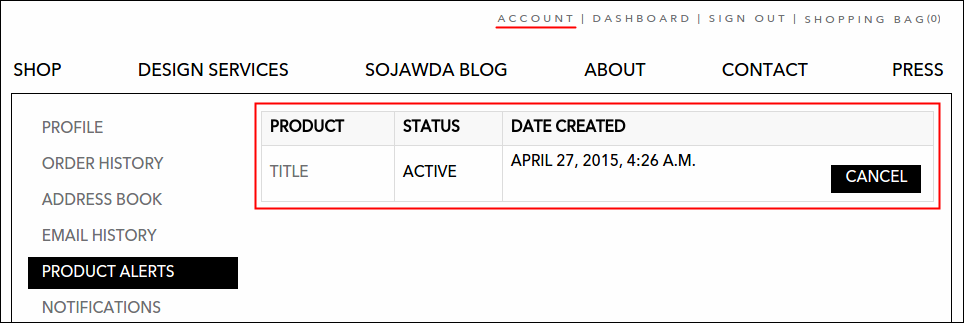
In addition, system admin has the full access and permission to manage these alerts. Follow the step by step procedure on viewing and managing product alerts.
-
Log in using Admin credentials.
-
Click Dashboard menu, then Customers tab and select Stock Alert Requests.

-
Product Alerts page will display with the list of all alerts created on the site.
-
To search for a certain alert, you can filter the display of listed alerts according to its status or you can simply enter the name or email address of requestor and click Search. Click the Reset button to empty out the fields. To understand more of this, see the sample visuals below:
Select any status from the list and click the Search button.
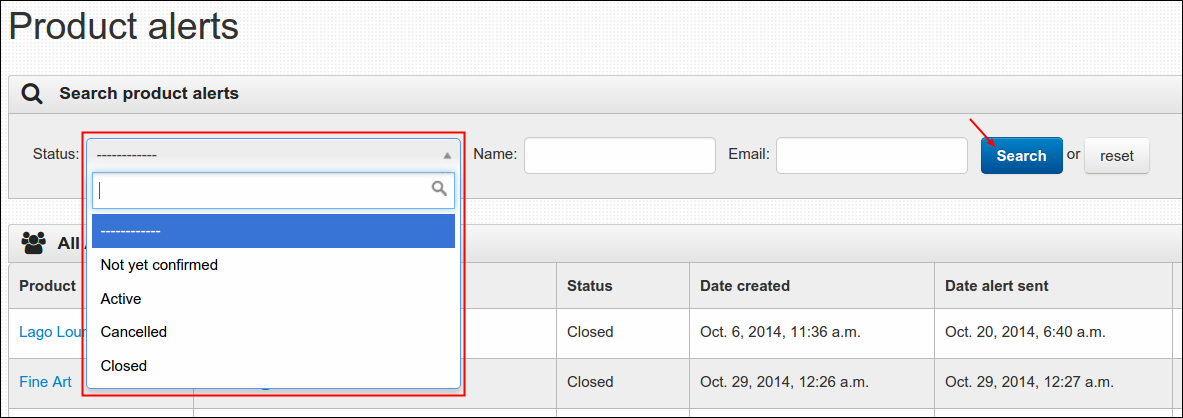
Enter either the name or email address of requestor and click the Search button.

-
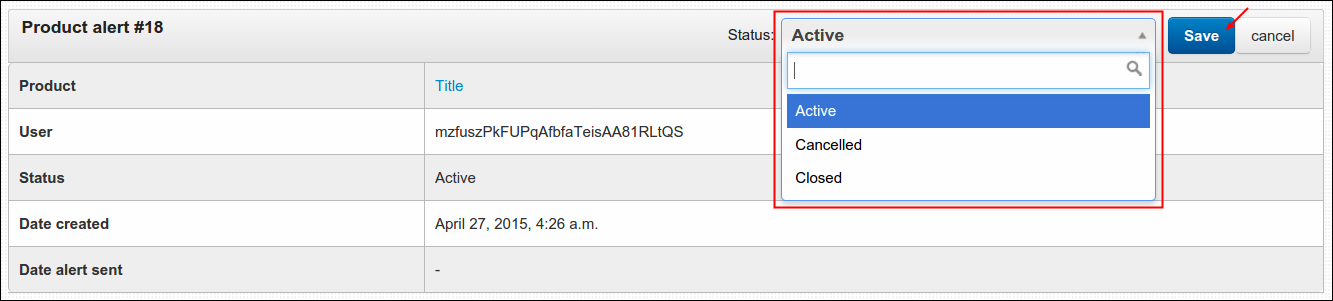
To update the status of an alert, locate the alert from the list, click its Actions button and select Edit. From Active status, you can either cancel or close the alert by selecting the status from the choices and click Save.
-
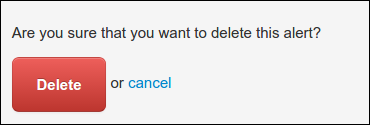
To delete an existing alert, choose the alert that you wish to be removed. Click its Actions button and select Delete. Information about the alert will display again with a message (at the bottom) asking if you are sure for your action. Click Delete to continue or Cancel to return to the menu.
Managing Low Stock Alerts
If you can still remember the Low stock threshold field from Adding a New Product guideline then I think you'll understand more where these alerts was enabled. You can encounter this field while creating a new product, this form is under Product Stock section where you also input your product's cost price and shipping price.
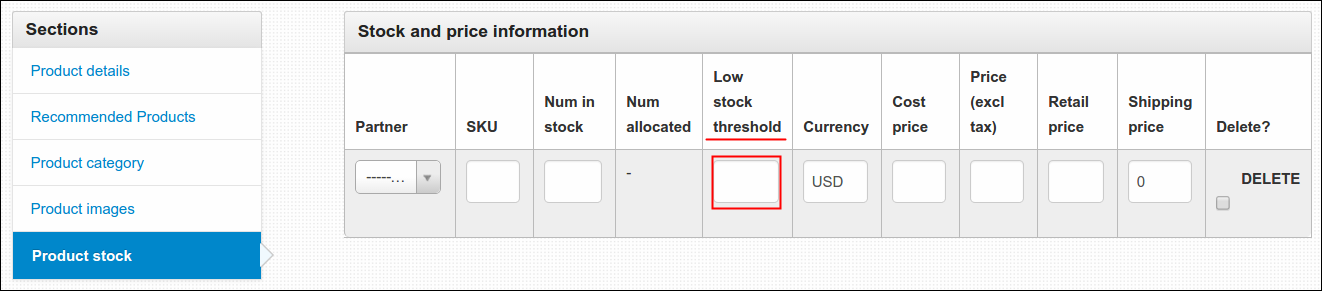
As what mentioned before, the purpose of filling in this field is to create an alert when product stock gets low and reached the number entered on this field. There's a section in the system where you can view and manage all of these pre-created alerts. Simply follow the instructions below:
-
As always, you must log in using your Admin credentials.
-
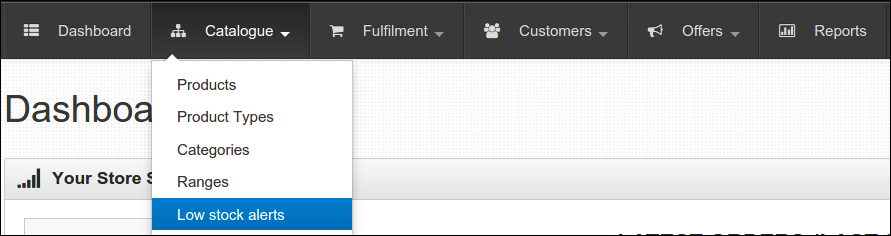
Click Dashboard, Catalogue and then select Low Stock Alerts from the list.
-
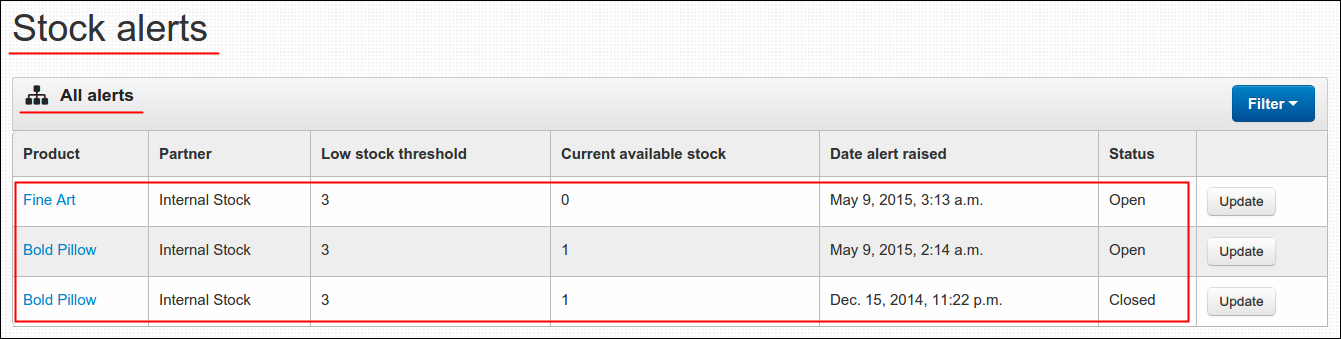
You will be then directed to Stock Alertspage, you can find all of the alerts (regardless of status) under All Alerts table.
-
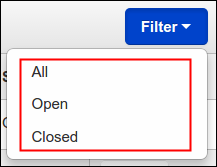
To filter the displayed alerts, choose one from the given 3 choices (All, Open and Closed). Applicable results will display right away on the table.
You can notice the Update button per line, this leads you to Product Management page and you may use this to update the value of Low stock threshold.