Giving Admin Access to a User
-
Log in using Admin credentials.
-
Click Dashboard, Customers and select Customer Management.

-
You will be then directed to Customer page wherein all registered users and their informations were listed. Here's what the page looks like:

-
To give an admin access to a user, select one name from the list and tick its corresponding checkbox. As an example, let's select 'Saba Jawda'.
-
At the top of the list, you can find 4 different option such as:
- Make active- user can continuously logon to the site
- Make inactive- user can no longer logon to the site unless his/her status returned to active.
- Make staff- also considered as Admin account but with limited access. Users that has make staff account is entitled to have access in Dashboard, will be able to manage the cms plugins, extensions, and its contents.
- Remove as staff- user will be returned to normal user status with no admin access.
From the four, select Make staff and tick Go! button.

-
A message will appear that says 'Users staff status has successfully changed'. Look at the All Users list under Staff? column, from false status, Saba Jawda has now True status.

Viewing Customer Information
-
Log in using Admin credentials.
-
Click Dashboard, Customers and select Customer Management.
-
You will be then directed to Customer page wherein all registered users and their informations were listed. Here's what the page looks like:
-
There are two ways to view a customer's information, first and the most easiest one is by clicking the email of the customer.

Second is by clicking the View button, beside Num Orders column.

-
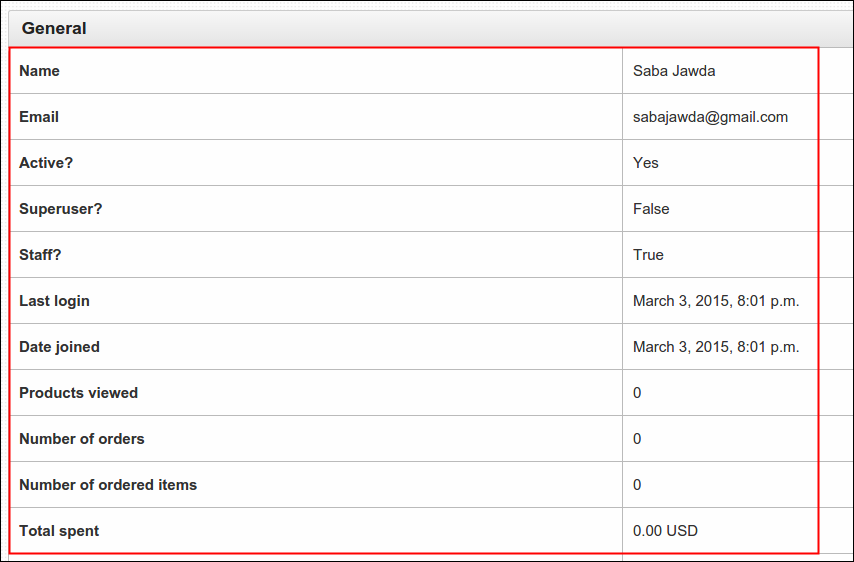
Either way, you will be directed to a new page wherein selected customer's general information are presented. Some of them are the following: Name, Email, account status, Date Joined, Products Viewed and many other related details.
-
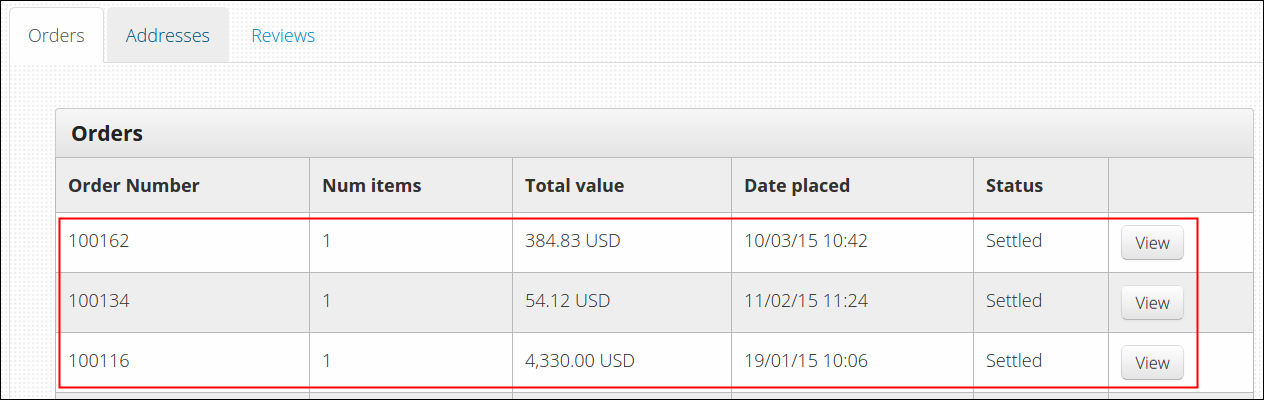
At the bottom part of the page, you can find 3 tabs namely:
- Orders- list of customer's acquired items
- Addresses- list of customer's registered addresses
- Reviews- list of customer's created reviews
Here's what the Orders looks like, as you click on one of the orders View button, it will lead you to a more detailed presentation of your orders.