Changing the Details on Contact Form
-
Log in using Admin credentials.
-
Go to Contact page.
-
Set your page into editing mode by clicking the Live status button.
-
Click Structure.
-
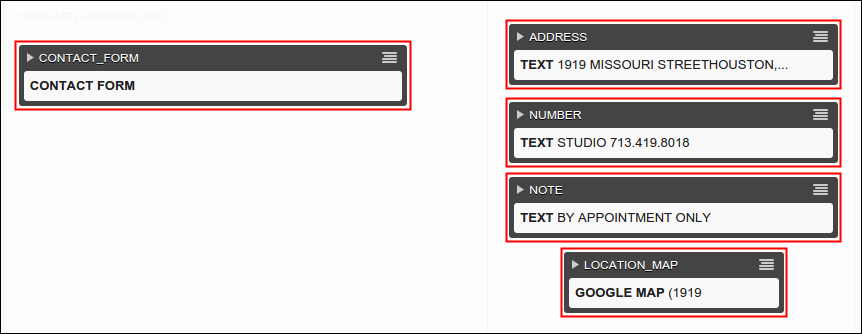
The following plugins are the only plugins that you need to update in order to change the details of your contact page.
-
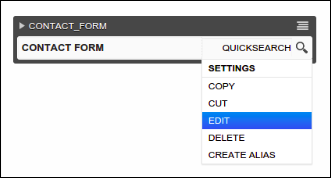
To edit the Contact Form, move your cursor over its menu and select Edit, same goes with other concerned plug ins.
-
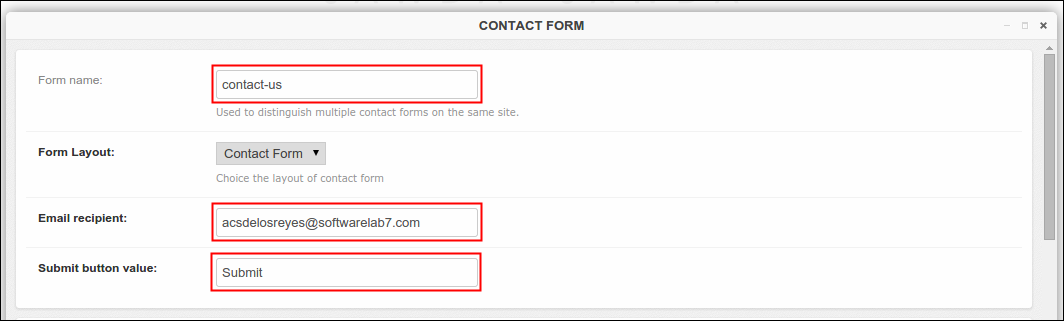
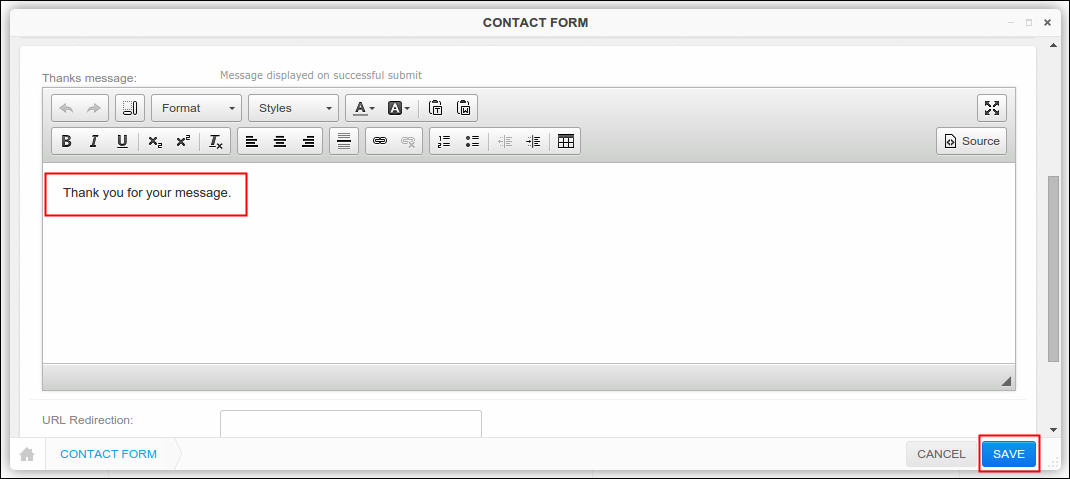
A new window will come out. This is the right time to update the information of your contact form, you can change the form name, email recipient, and even the message on successful submit that your users are gonna receive is editable too.
-
Click Save to continue or Cancel to return to the menu. If you made some update, don't forget to click Publish Changes to post the made changes.
Changing the Details on Text Template
-
Log in using Admin credentials.
-
Go to Contact page.
-
Set your page into editing mode by clicking the Live status button.
-
Click Structure.
-
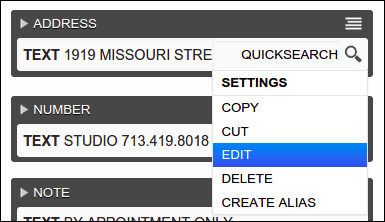
To edit the details on Text template, simply move your cursor over its menu and select Edit. This only applies to Address, Number and Note plugins. As an example, i will try to edit the information of Address.
-
A new window will pop out named Text , you many now update text or the message that is currently posted on the site.

-
Click Save, wait til the page finish its loading. Click Publish Changes afterwards. A message must appear that says 'the content was successfully published' and you must see now the update that you just made.
Changing the Address on Google Map Template
-
Log in using Admin credentials.
-
Go to Contact page.
-
Set your page into editing mode by clicking the Live status button.
-
Click Structure.
-
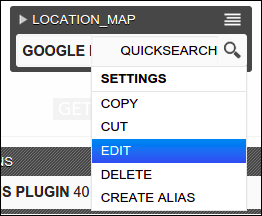
To edit the details on Google Map template, move your cursor over its menu and select Edit. This only applies to Location Map plugin.
-
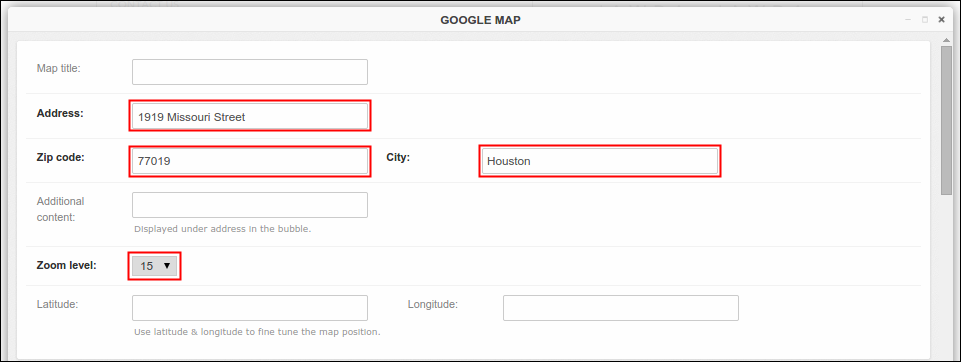
A new window will pop out named Google Map. You can update the Address, Zip Code, City and other related fields if necessary.
-
Once you're done, click Save, wait til the page finish its loading. Click Publish Changes afterwards to publish your made changes. A message must appear that says 'the content was successfully published' and the map must direct you now to newly changed address as you clicked Get Directions button.
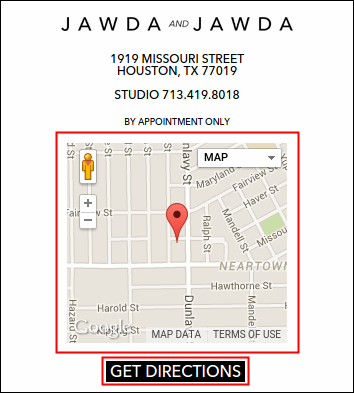
Note: If you wish to update the details of your map, you must update the address information as well on Address plugin through Text template to avoid confusion to end users.
Deleting an Existing Template
-
Log in using Admin credentials.
-
Go to Contact page.
-
Set your page into editing mode by clicking the Live status button.
-
Click Structure.
-
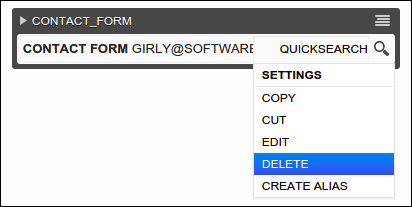
To delete an existing template, select the template under this page that you wish to delete. Move your cursor over the template's menu and select Delete. Let's try to remove the existing Contact Form
-
As you clicked the Delete option, a message will pop up to validate your action. Here's the sample message..

-
Click Yes, I'm sure button to continue or Cancel to void your action and return to the menu. When you clicked yes, template will no longer visible under concerned plugin. Click Publish Changes button to publish your made changes.