Adding a New Press Link
-
Log in using your Admin credentials.
-
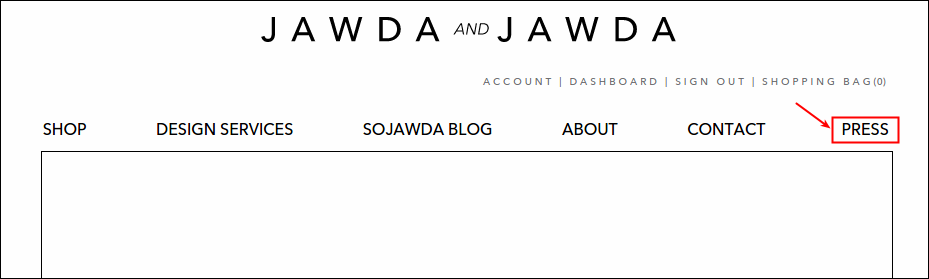
Go to Press page.
-
Click Live status button to set your page into editing mode. Once clicked, it will turned to Draft status.
-
Click Structure
-
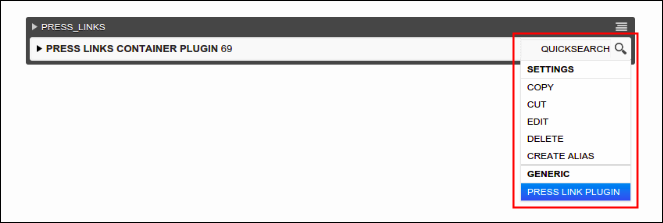
Press Links plug in will appear with an item under it named Press Links Container Plugin 69. Move your cursor to its menu and select Press Link Plugin.
-
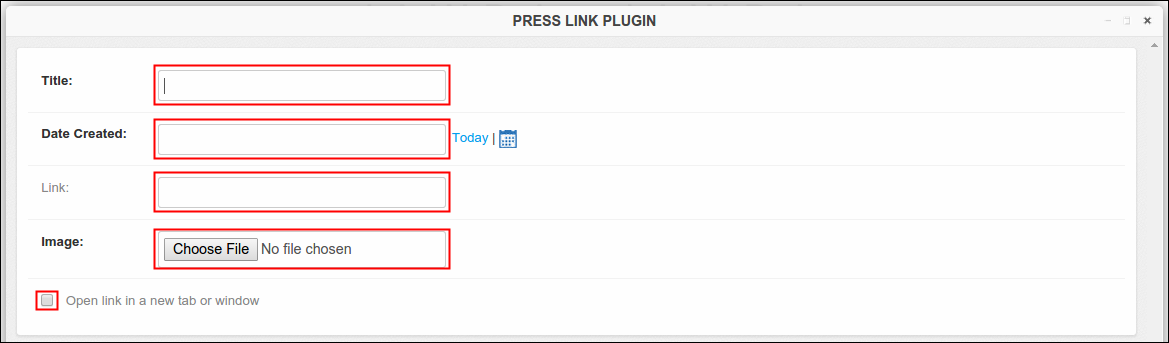
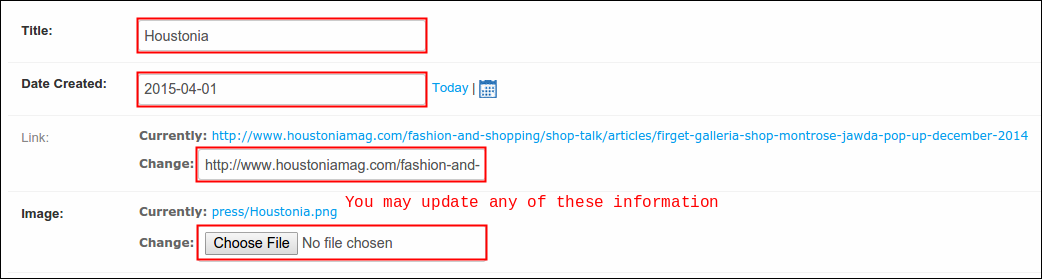
Press Link Plugin template will pop up. To create a new entry to your Press page, fill in the following required fields:
- Title- title of your entry.
- Date Created- date of your entry, use either the calendar icon or click Today if applicable.
- Link- web address of the page, must a complete url.
- Image- front image of your entry.
Note: If you want to view the link in a new tab or window, tick the checkbox. I suggest to enable this option to avoid shifting of pages on the same window.
-
Once you're done, click Save to continue.
-
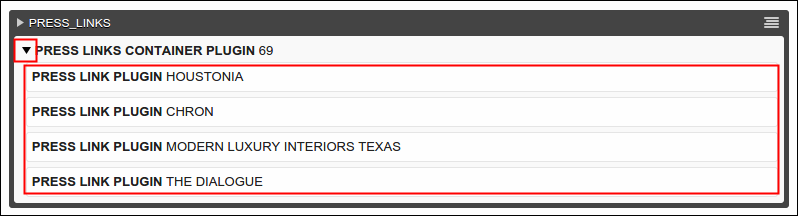
Newly entered press link are now added under Press Links Container Plugin 69. To check, just click the down arrow beside it and there you go, the list of created press links will display.
-
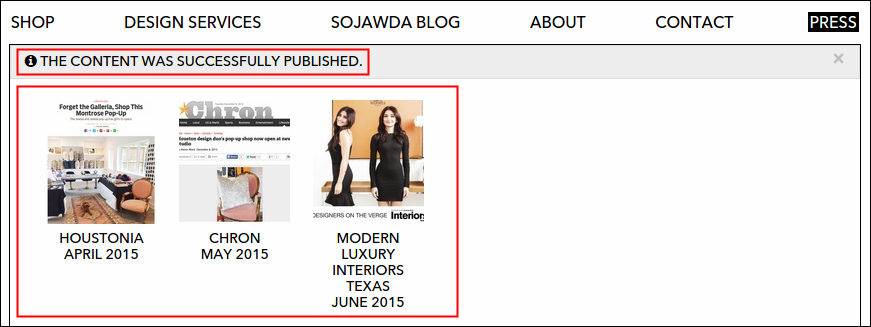
Click Publish Changes to post your made changes. A message that says "The content was successfully published" must show up and new entries must now display on press page, just as like the picture below.
Editing an Existing Press Link
-
Enable the editing mode of the site by clicking the Live status button.
-
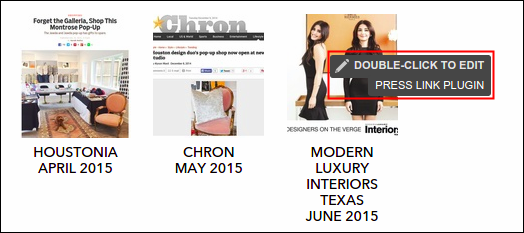
There are three ways to edit an existing entry on Press page, first and the simplest one is through Content view wherein as you hover over Press entries you'll find a text guideline that says "double click to edit". Move your cursor over the entry that you wish to update and follow the instruction, double click.
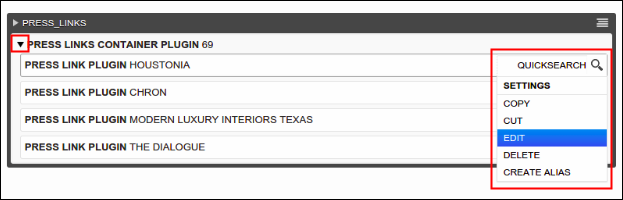
The second way is by clicking the Structure button. Expand the items under Press Links Container Plugin 69 by clicking the down arrow. Select the entry that you wish to update, click its menu and select Edit.
The third way is quite similar to the second one, click the Structure and expand the items under Press Links Container Plugin 69. Select the entry that you wish to update, then double click (a hand icon must show first before you do the double clicking).
-
Press Link Plugin window will pop up. This is the right time to edit and update the information of your selected entry.
-
Once done, click Save to continue or Cancel to return to the menu. If you made some update, don't forget to click Publish Changes to post your made changes.
Deleting an Existing Press Link
-
Enable the editing mode of the site by clicking the Live status button.
-
Click Structures.
-
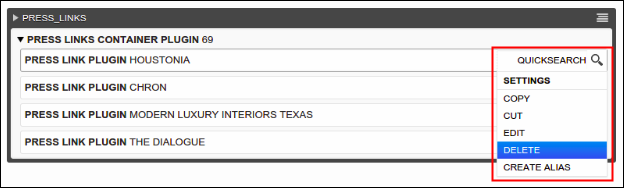
From the items under Press Links Container Plugin 69, select the entry that you wish to delete.
-
Click its menu and select Delete.
-
A confirmation message will pop out to validate your action.
-
Click Yes, Im Sure button to continue or Cancel to return to menu. When Yes, Im Sure button is clicked, hit the Publish Changes button to update the press page and removed your selected entry.