Adding a New Product Type
-
Log in using Admin credentials.
-
Go to Dashboard, Catalogue and select Product Types.

-
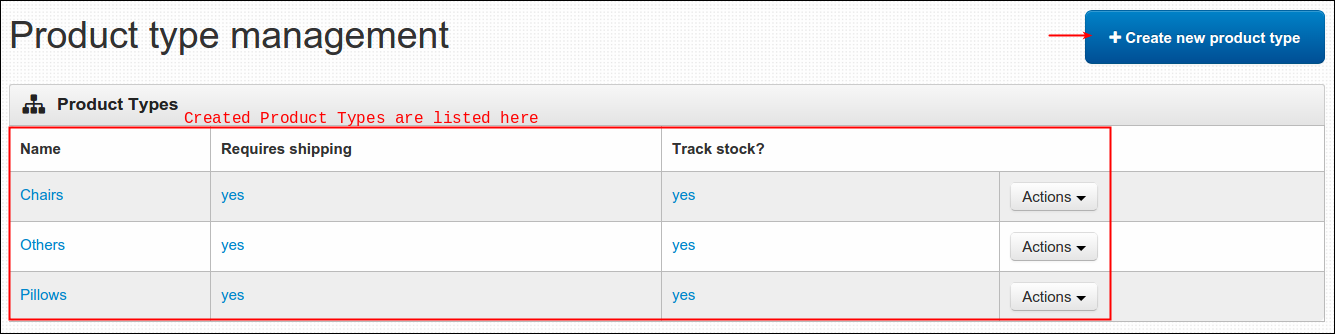
You'll be directed to Product Type Management page wherein all created product types were listed (if any). To continue, click Create new product type button.
-
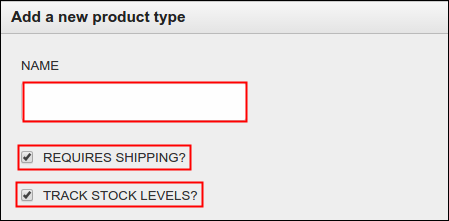
Fill in the Name field and toggle the given option if necessary. See description of each below:
- Name- name of product type (i.e. Apparel, Shoes)
- Requires Shipping?- applies to items that are meant to be delivered like furniture, paintings and other similar items. Products that doesn't require this option are only those under digital download category like music, e-greeting cards.
- Track Stock Levels?- when enabled, you're allowing all the items under such product type to monitor its inventory that can be viewed on Stock Alerts table, as what discussed on Managing Stock Alerts.
-
Click Save to finish or Cancel to return to previous page.
Editing an Existing Product Type
-
Log in using Admin credentials.
-
Go to Dashboard, Catalogue and select Product Types.
-
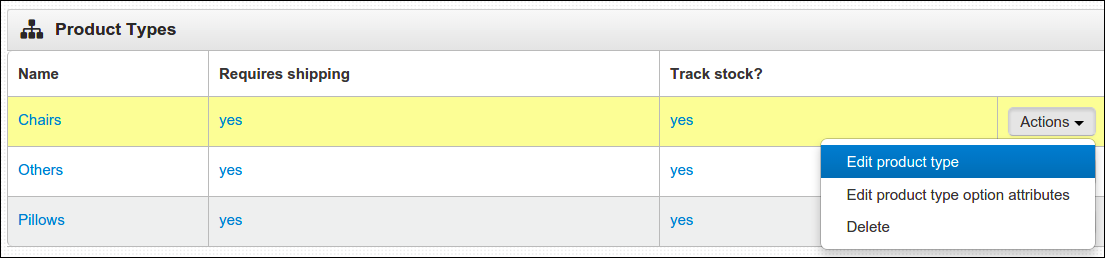
From the menu, select the product type that you wish to update. Click Actions and select Edit product type.
-
Go to section that you wish to edit.
-
Click Save to finish.
Editing an Existing Product Type that has Option Attributes
-
Log in using Admin credentials.
-
Go to Dashboard, Catalogue and select Product Types.
-
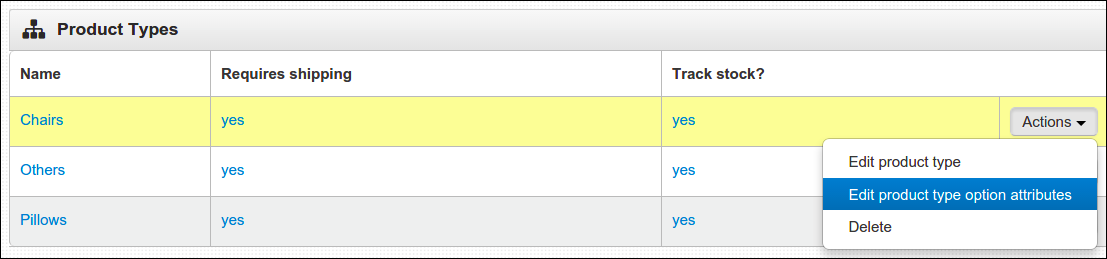
From the menu, select the product type that you wish to update its option attribute. Click Actions and select Edit product type option attributes.
-
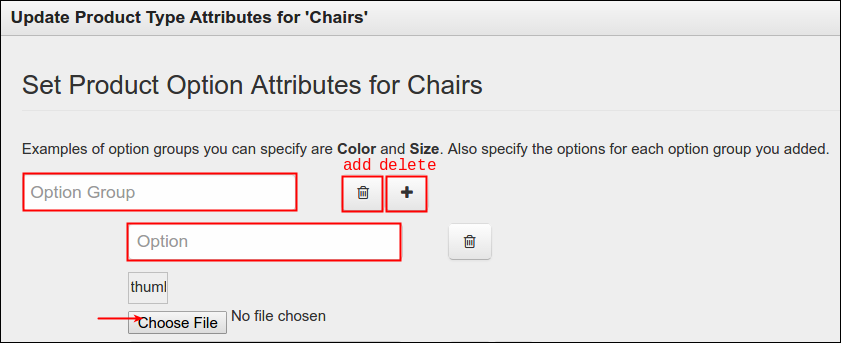
Fill in Option Group and its Options. You can add a thumbnail or image per option by clicking Choose File button and a new window will come out, locate the image and then upload it afterwards. Be advised that Delete (trash icon) and Add (plus sign icon) buttons are present on this page.
- Option Group- product attribute title. (ex. Fabric, Finish)
- Option- value of created option group. (ex. Cotton, Charcoal)
Note: Products under these product types (with present attribute) will automatically inherit the attributes from the time of creation.
-
Click Submit to Save.
Deleting an Existing Product Type
-
Log in using Admin credentials.
-
Go to Dashboard, Catalogue and select Product Types.
-
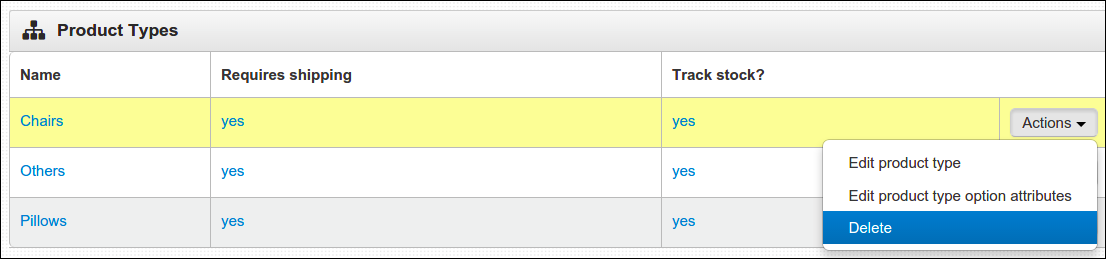
From the menu, select the product type that you wish to remove from your system. Click Actions and select Delete.
-
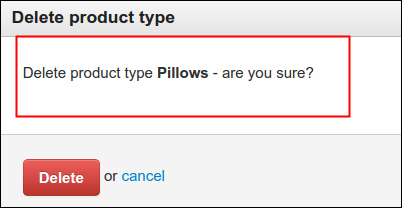
A delete confirmation message will come out to validate your action. Here's what it looks like:
-
Click Delete to continue or Cancel to return to the menu.
Note: Please be advised that you won't be able to delete a certain product type if there are still active products associated to it. Deletion is only possible to those product types that wasn't linked to a product.