Adding a New Category
-
Log in using Admin credentials.
-
Enable the editing mode of the page, click Live button.
-
Click Zinnia and select New Category.
-
Create a new category, minimum requirement is Title. Let's try to add a new category, as an example i will add Spotlight:Shoes.
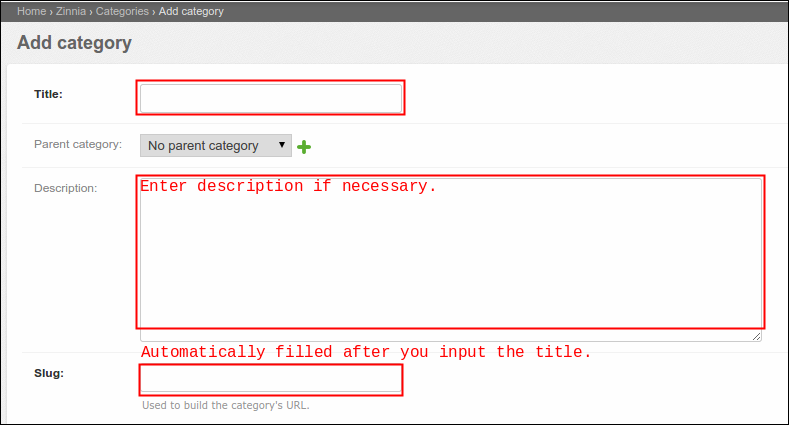
-
Click Save to continue. A 'added' confirmation message of your action will prompt at the top left hand of the page. Newly added category is now also listed along with other active categories.
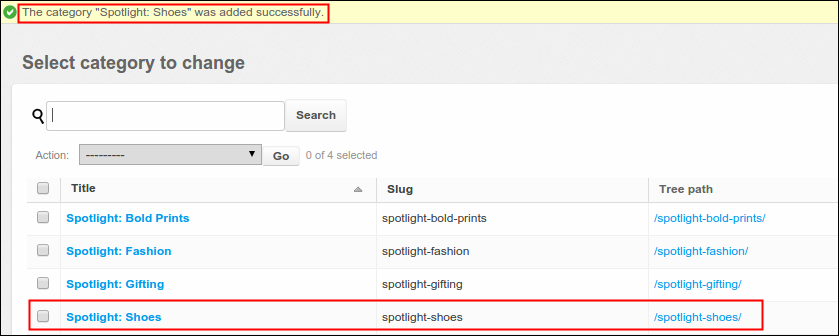
Note: Newly created category won't be display on the site until you create an entry to it.
Adding a New Entry
-
Log in using Admin credentials.
-
Enable the editing mode of the page, click Live button.
-
Click Zinnia and select New Entry.
-
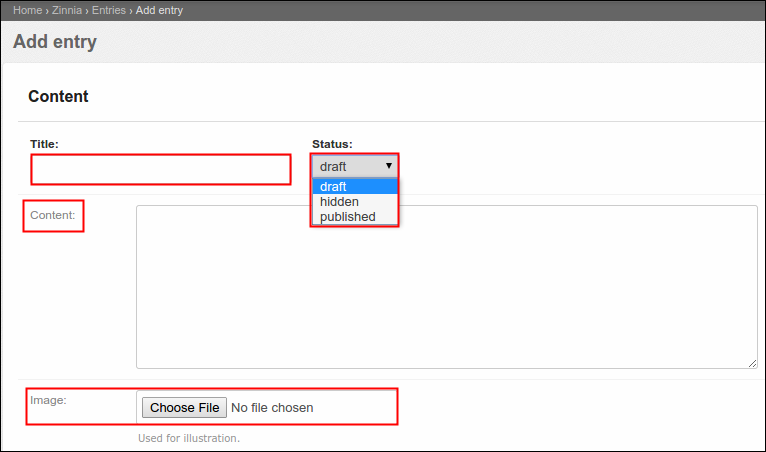
Create a new entry, important fields are as follows:
- Title- name of entry
- Status- there are three selections:
- draft- preliminary version of an entry.
- hidden- temporarily not visible on main site.
- published- displayed on main site, always select this to publish your made changes.
- Content- message of your entry
- Image- displayed photo of your entry
- Categories- designation of your entry
There are two ways to select from the list of available categories: first, select one category and click the highlighted arrow icon or; second and the simplest way, double click the category and voila it is now placed to your chosen categories box.
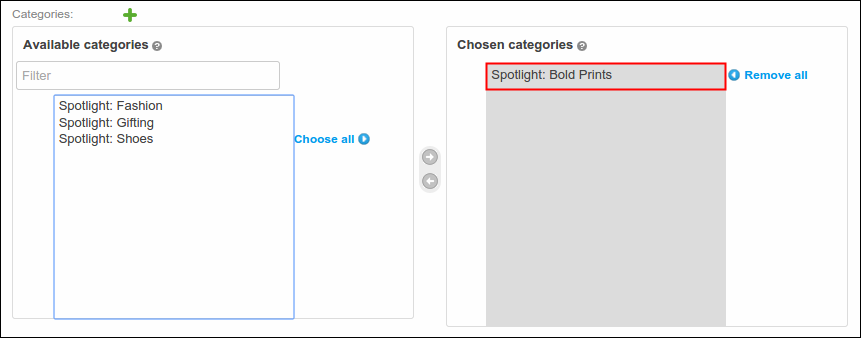
As an example, I will add a new entry under Spotlight:Shoes named Louboutin.
-
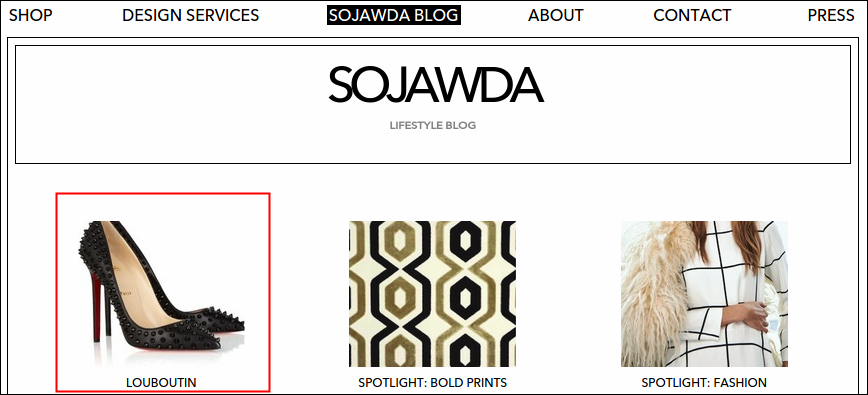
Click Save, a confirmation message must display that says "The entry 'Louboutin:published' was added successfully" and newly created entry must now added in the list along with other active entries. To check it on the site, close the cms window and go to Sojawda Blog page, refresh the page and boom Louboutin is now published (see screenshot below).
Viewing the List of Categories
-
Log in using Admin credentials.
-
Enable the editing mode of the page, click Live button.
-
Click Zinnia and select Categories List.
-
Informations of all active categories are all listed here, option of editing or deleting a category can be found here as well. Don't forget to expand the page by clicking the small square icon.

-
To edit, simply click the name itself and it will direct you to its content. Once done, click Save. A confirmation message will display that says 'The category (name of category) was changed successfully' and newly added information are now displayed in the table.

-
To delete, check the category that you want to remove. From action list, select Delete selected entries and click Go. Just say yes to delete confirmation message and voila, category is now removed from the list as you refresh your page.

Viewing the List of Entries
-
Log in using Admin credentials.
-
Enable the editing mode of the page, click Live button.
-
Click Zinnia and select Entries List.
-
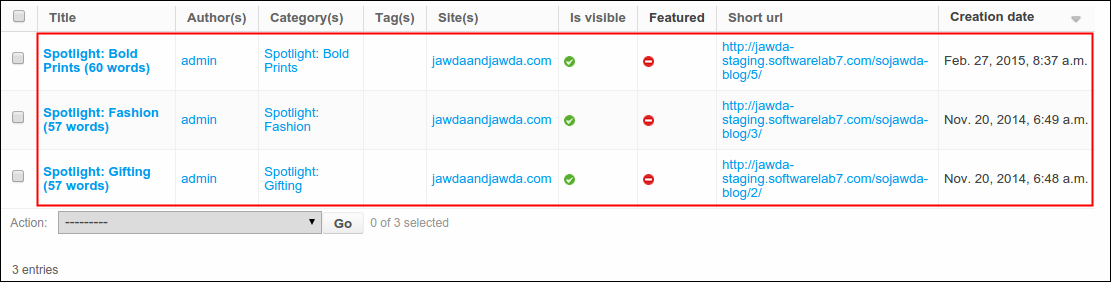
Informations of all active entries are all listed here, option of editing or deleting an entry can be found here as well. To view the list in full page, click the small square icon.
-
To edit, simply click the entry name itself and it will direct you to its content. Once done, click Save. A confirmation message will display that says 'The category (name of entry) was changed successfully' and newly added information are now displayed in the table.

-
To delete, check the entry that you want to remove. From action list, select Delete selected entries and click Go. Just say yes to delete confirmation message and voila, entry is now removed from the list as you refresh your page.
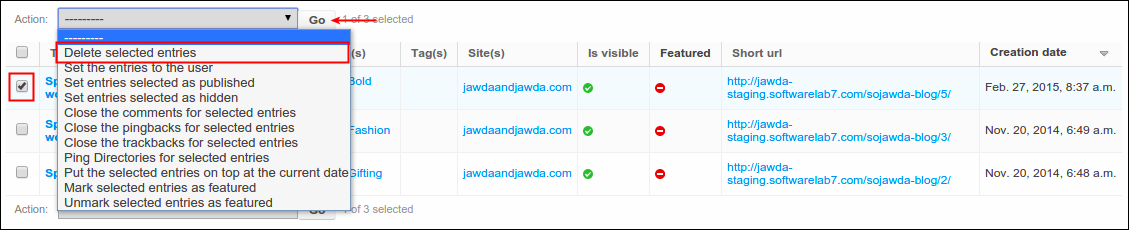
Note: There are other options under Action list that you can use if necessary.