Creating New Offer
-
Log in using Admin credentials.
-
Click Dashboard menu, Offers tab and select Offer Management.

-
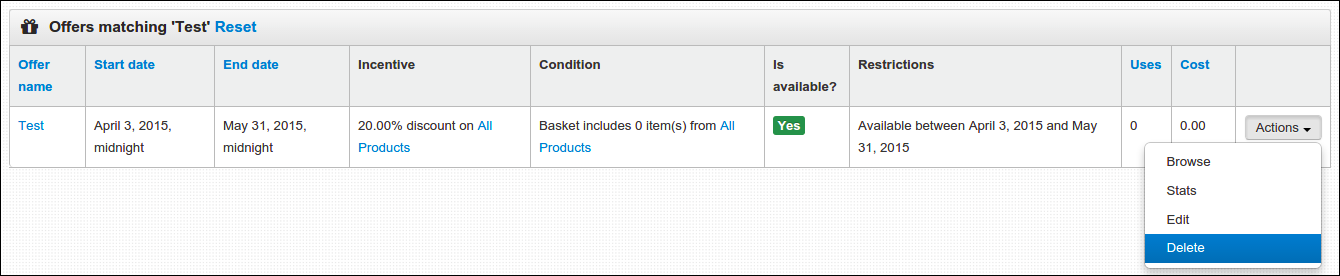
You'll be directed to Offer Management page where all of existing offers were listed. Currently we have offer named Test.
-
Click Create a new Offer button.
-
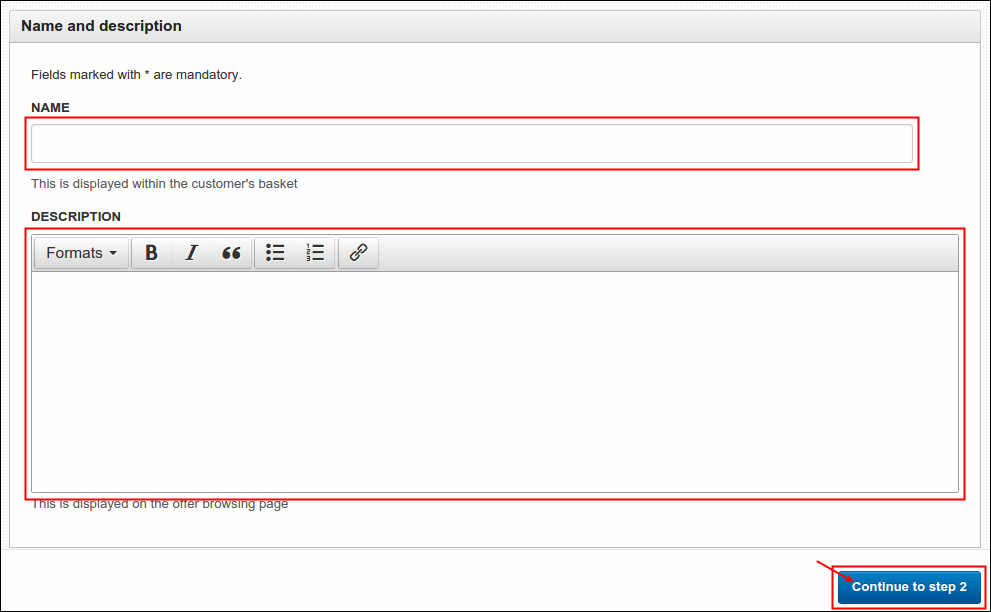
On Name and Description, fill in the Name (offer title) and Description (few information about the offer) fields and then click Continue to Step 2 button.
-
On Incentive, fill in the following required fields:
- Range- products that are participating in the offer, existing ranges will display on the drop down list. If you wish to create a new one, refer to the link located at the bottom of this field that says range dashboard.
- Type- refers to types of discount that system can only provide. Select one from these default given choices, description of each is explained below:
- Discount is a percentage off of the product's value- selected range of products will get a particular percentage (to be entered on Value) of markdown when conditions are met. Ex. 'Spend $300+ worth of The Jawline Collection products, get 10% off'.
- Discount is a fixed amount off of the product's value- selected range of products will get a specific amount (to be entered on Value field) of discount when conditions are met. Ex. 'Spend $200+ worth of Veritas Greeting Cards item, get $20 discount'.
- Discount is to give the cheapest product for free- most low-priced item on the basket will be given to customers for free when conditions are met. Ex. Get 25 items of Jawline Collection products, get the cheapest item on basket for free.
- Get the products that meet the condition for a fixed price- means customer can obtain the concerned products for a settled amount (to be entered on Value) when conditions are met. Ex. 'Buy 3 Bold Pillows ($105 each) for only $300', in this particular case customer gets $15 discount.
- Discount is a fixed amount of the shipping cost- specific amount of discount (to be entered on Value) will take place on order's shipping cost when conditions are met. Ex. 'Get 10 Veritas Greeting cards and get $20discount on shipping cost'.
- Get shipping for a fixed price- offers an opportunity to set a particular price (to be entered on Value) on order's shipping cost when conditions are met, somehow similar to free shipping offer. Ex. 'Spend $450 worth of basket and pay $0 on shipping cost'.
- Discount is a percentage off of the shipping cost- particular percentage off (to be entered on Value) will set in on order's shipping cost. Ex. 'Spend $300 worth of basket, get 50% off on shipping cost'.
- Value- refers to percentage or amount of discount featured in the offer, whatever you enter on this field applies to your selected Type above.
- Max Affected Items- a numerical entry, this option sets discount limit on items within the product range that are included in shopping bag.
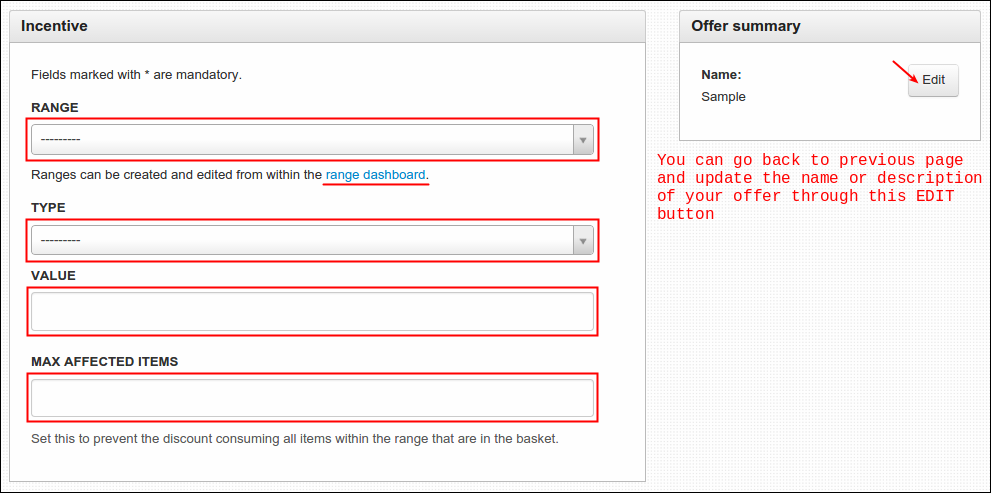
Click Continue to Step 3 button afterwards.
-
On Condition, fill in the following mandatory fields below:
- Range- covered product range of condition, all created ranges will display on its rop down list.
- Type- types of conditions that should meet the Value (next field). System has three default types and they are as follows:
- Depends on number of items in basket that are in condition range- effectivity of discount relies on reaching the aim quantity (to be entered on Value) of items in basket. It is very important to meet this certain number of item before discount sets in.
- Depends on value of items in basket that are in condition range- not so different with above mentioned type, what differs is that this relies on meeting the set amount (to be entered on Value) of basket cost, not its quantity.
- Needs to contain a set number of distinct items from the condition range- requirement: reach a certain quantity of items under pre-selected product range and you'll be entitled of the discount, set the aim quantity on Value.
- Value- minimum quantity or amount of shopping basket based on your selected condition type, whatever you enter on this field applies to your selected Type.
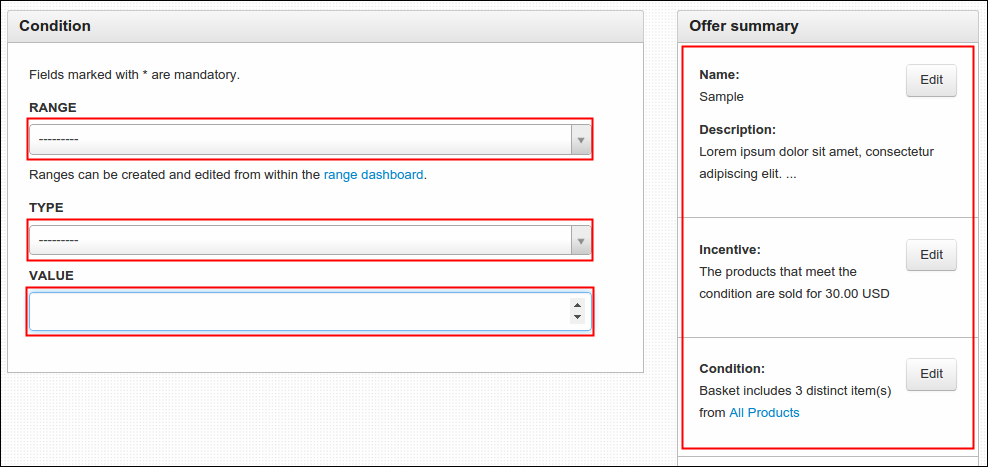
Click Continue to Step 4 button afterwards.
-
On Restrictions, fill in the following mandatory fields below:
- Start Date & End Date- pertains to start and end date/time of your offer duration, you can simply choose a date from the calendar and adjust the Hour and Minute (if necessary) and click Done to finish. You can also select Now button to set the calendar on this particular day.
- Max Basket Applications-as what explained on the form, this limits the number of times the offer can be used to a basket (or an order).
- Max User Applications- limits the number of times a single user can use the offer.
- Max Global Applications- limits the number of times the offer ca be used before it begin to be unavailable.
- Max Discount- maximum amount of discount that you can give on particular offer, when it exceeds offer will automatically become inactive.
Click Save this offer to finish. A confirmation message will pop out and newly created offer will now be added under All Offers table.

Managing an Existing Offer
Created offers that you can find on All Offers table can easily manage through its Actions button. As you clicked the button, there are four options that you can use to modify your offer just the way you like it. To start, follow the step by step procedures below:
-
Log in using Admin credentials.
-
Click Dashboard, Offers and select Offer Management.
-
You'll be then directed to Offer Management page where all of existing offers were listed. On this page, you can either search or filter the list of these offers to easily locate the offer that you wish to modify. To start that, you can either enter the name of offer on Offer Name field (and click Search button) to show relative results or toggle the Is active? option (and click Search button) to display active offers only.

-
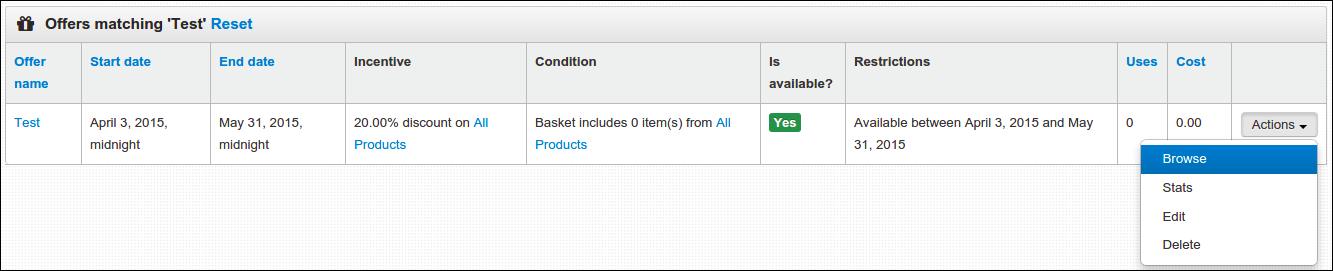
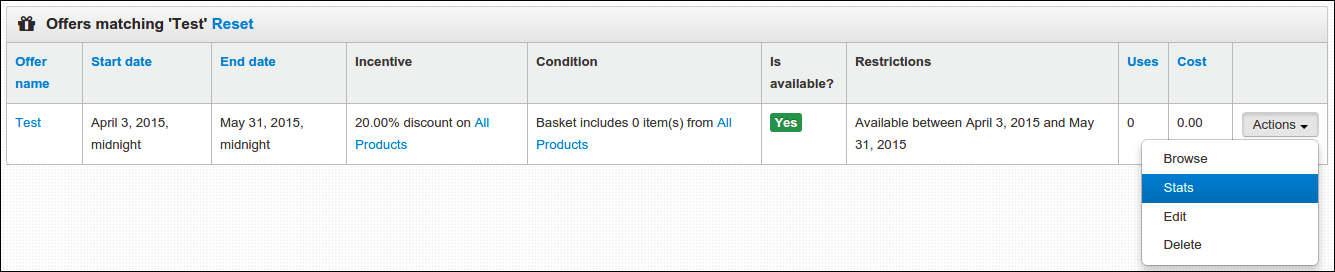
After you locate your target offer, you may now use the options under Actions button. The use of Browse option is to display the products covered by your offer, to use it click Actions and select Browse.
-
To view the details of your offer, click the offer's Actions button and select Stats.
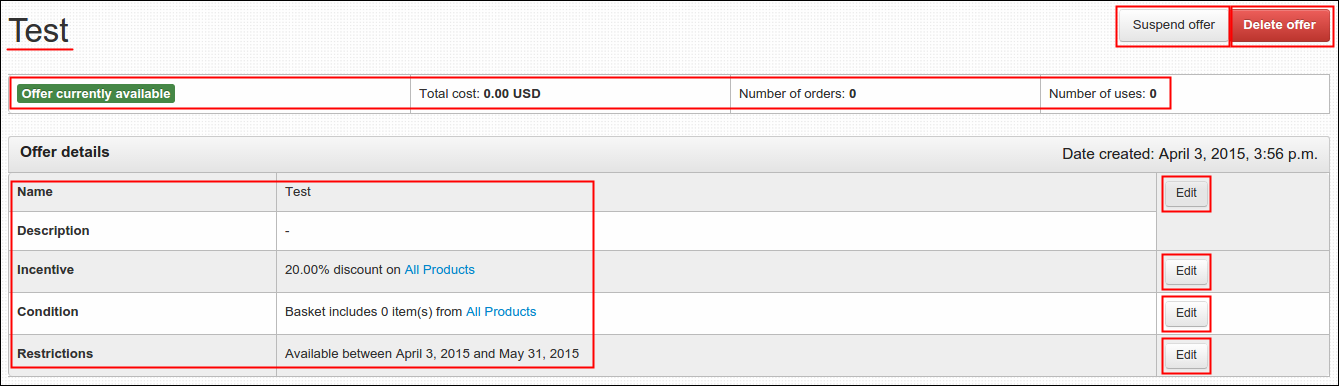
Information such as Name, Incentive, Condition and other alike details were presented here. You may edit each of these details, suspend or delete an offer if you like so.
-
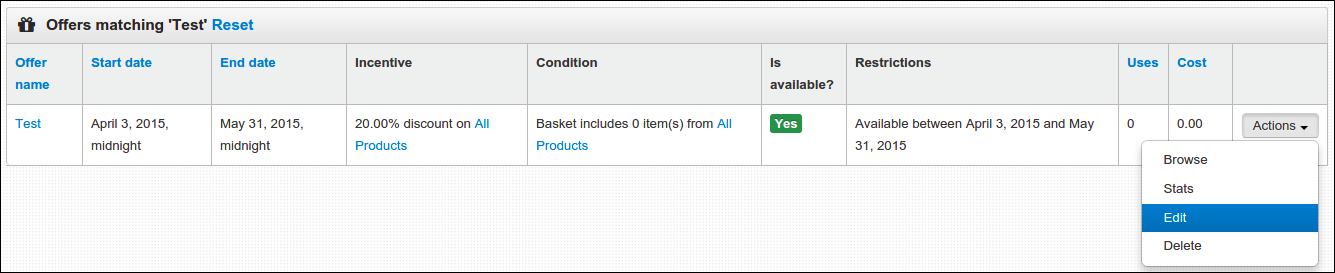
To update an offer, do the same thing, click the offer's Actions button and select Edit.
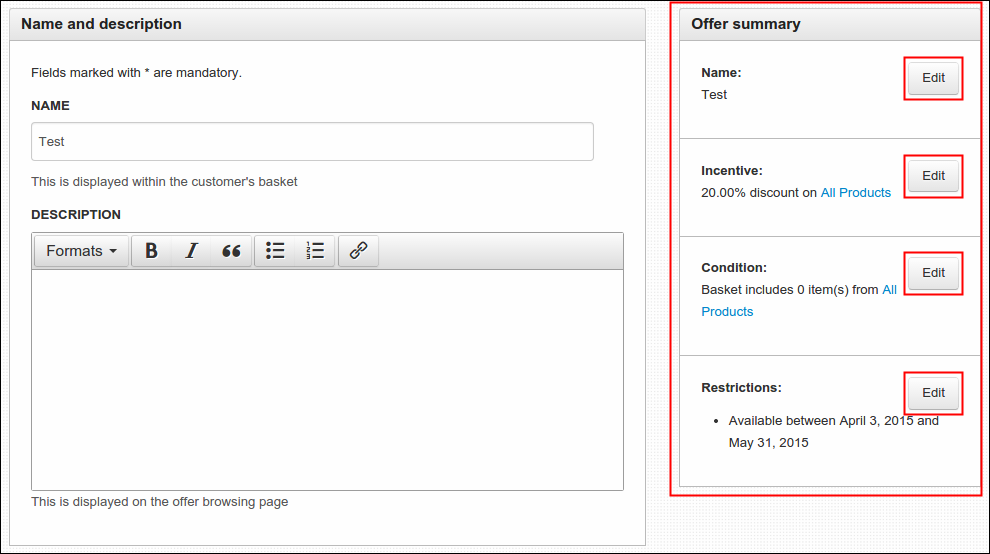
Same form in creating a new offer will came out, under Offers Summary select the section that you wish to update and click the Edit. You'll be directed to your selected section, do the update and hit Save Changes button to finish.
-
Lastly, to delete an offer, click offer's Actions button and select Delete. A message will pop out ensuring your action, click Delete to continue or Cancel to return to previous page.
Creating New Free Shipping Offer
-
Log in using Admin credentials.
-
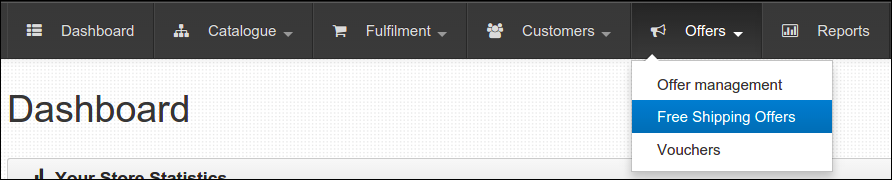
Click Dashboard, Offers and select Free Shipping Offers.
-
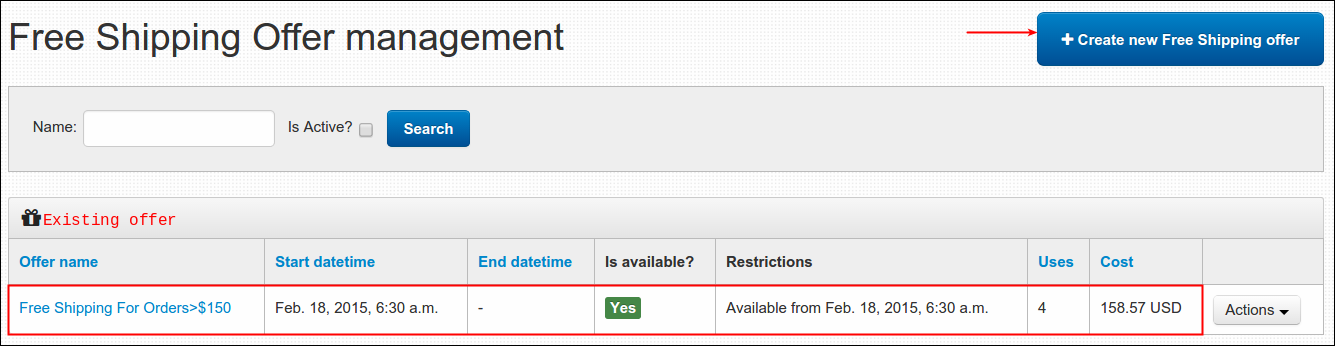
You'll be then directed to Free Shipping Offer Management page where all of existing free shipping offers were listed, currently we only have Free Shipping For Orders>$150 offer. Click Create new Free Shipping Offer button to continue.
-
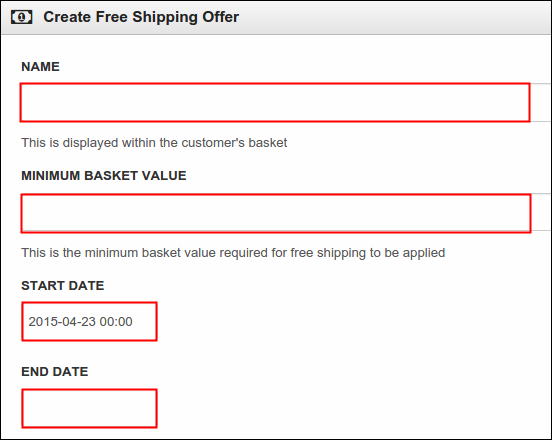
Fill in the following required fields:
- Name- title of free shipping offer, title may describe the involved amount of basket to avail such offer. (i.e. Free Shipping for Orders $200+)
- Minimum Basket Value- least amount of basket needed to utilize the free shipping offer.
- Start Date and End Date- refers to start and end time of your offer duration (if any). You can simply choose a date from the calendar and adjust the Hour and Minute (if necessary), click Done to finish. You can also select Now button to set the calendar on this particular day and click Done.
-
Click Save to continue or Cancel to return to previous page. When you saved an offer, it will be added in the offers list and will be usable on the site as long as it is available.
Managing an Existing Free Shipping Offers
-
Log in using Admin credentials.
-
Click Dashboard, Offers and select Free Shipping Offers.
-
You'll be then directed to Free Shipping Offer Management page wherein all existing offers were listed, currently we only have Free Shipping For Orders>$150 offer.
-
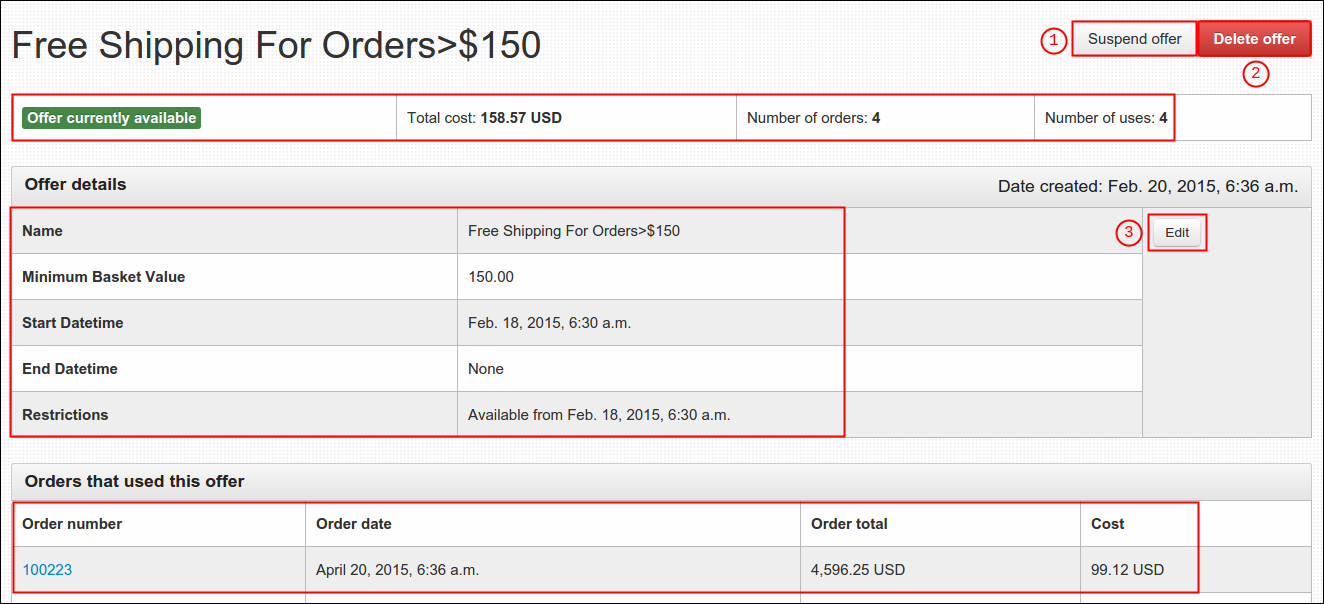
To view an offer, click Actions and select Stats.

A new page will pop up where detailed information of the offer were presented. You can suspend, delete or edit the offer through this page by clicking their corresponding buttons.
-
To edit an offer, click Actions and select Edit.

Same form in creating new offer will pop up, review again the description of each fields below:
- Name- title of free shipping offer, title may describe the involved amount of basket to avail such offer. (i.e. Free Shipping for Orders $200+)
- Minimum Basket Value- least amount of basket needed to utilize the free shipping offer.
- Start Date and End Date- refers to start and end time of your offer duration (if any). You can simply choose a date from the calendar and adjust the Hour and Minute (if necessary), click Done to finish. You can also select Now button to set the calendar on this particular day and click Done.
-
To delete an offer, click Actions and select Delete.

A message will appear confirming your action, click Delete to continue or Cancel to return to the menu.
Creating New Voucher
-
Log in using Admin credentials.
-
Click Dashboard, Offers and select Vouchers.

-
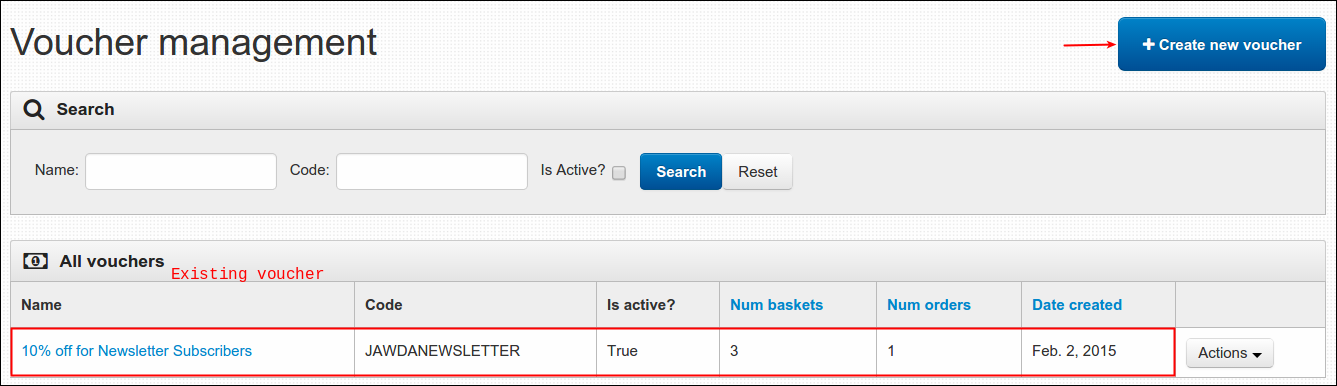
You'll be then directed to Voucher Management page wherein all of existing vouchers were listed, currently we only have 10% off for Newsletter Subscribers offer. To continue, click Create New Voucher button.
-
Complete the form with the following required fields:
- Name- name of voucher
- Code- this is the code that will be emailed to customer and will automatically sets in once voucher condition met (ex. JAWDANEWSLETTER)
- Start Datetime & End Datetime- these fields pertains to start and end date/time of your promo duration, you can simply choose a date from the calendar and adjust the Hour and Minute (if necessary) and click Done to finish. You can also select Now button to set the calendar on this particular day.
- Usage- this is where you set when will your promo takes effect and whose entitled to use it. Conditions are as follows, see the description of each below:
- Can be used once by one customer- means the voucher can be applied for one time only by one specific customer.
- Can be used multiple times by multiple customers- the voucher can be applied numerous times by numerous customers.
- Can only be used once per customer- the voucher can be applied once for each one customer.
- Can only be used once per customer and on their first purchase only- voucher only works once on first order of each customer.
- Which Products Get A Discount?- this pertains to products that are covered by your particular voucher. The choices shown to this field are the ranges created beforehand just like the All Products, you can create a new one depending on your needs. To do so, refer to Creating a New Range guideline.
- Discount Type- this refers to types of discount that the system can only offer. Select one from these default given choices, description of each is explained below:
- Percentage off of products in range- means concerned products are entitled of particular percentage (the one entered on Discount Value, ex. 15% off) of markdown when conditions are met.
- Fixed amount off of products in range- means concerned products are entitled of specific amount (again, you will enter the amount on Discount Value field, ex. $10 off) off of discount when conditions are met.
- Discount is a percentage off of the shipping cost- particular percentage off (to be entered on Discount Value field) will take place on order's shipping cost. Let us say there's a promo to every customer that 'for every $200 worth of purchase, 50% off will set in on shipping cost'. If i met the condition and my shipping cost amounts to $30 then final shipping cost would result to $15 after the discount ($30*.50(%off)= $15).
- Discount is a fixed amount of the shipping cost- same goes with just mentioned discount type (third item), the only difference is that discount is in amount basis, not percentage. Let's rephrase the cited promo earlier, 'for every $200 worth of purchase, $20 off will set in on shipping cost'. Again, let's say i met the condition and shipping cost amounts to $45, final shipping cost would be $25 after the discount ($45-$20(off)= $25).
- Get shipping for a fixed price- this discount offers an opportunity to set a particular price (to be entered on Discount Value field) on order's shipping cost when conditions are met. (Ex. 'for every $300 worth of purchase, pay $0 on shipping cost', in some way this is similar to free shipping promo)
- Discount Value- this is the percentage or amount of discount, whatever you enter on this field applies to your selected Discount Type.
- Restriction Range- this enables you to set the limit of a voucher's scope, this and Which Products Get A Discount? usually has the same value.
- Restriction Type- types of conditions that should meet the Restriction Value. System has three default types and they are as follows:
- Depends on number of items in basket that are in condition range- effectivity of discount relies on reaching the aim quantity (the one you set on Restriction Value field) of items in basket. It is very important to meet this certain number of item before discount sets in. (Ex. 'Get a total of 10 items in shopping bag and get a free shipping')
- Depends on value of items in basket that are in condition range- not so different with above mentioned type, what differs is that this relies on meeting the set amount (on Restriction Value field) of basket cost, not its quantity. (Ex. 'Spend $300 worth of items and get a 50% off on shipping cost')
- Needs to contain a set number of distinct items from the condition range- requirement: reach a certain quantity of items under pre-selected category and you'll be entitled of the discount. Set the aim quantity on Restriction Value field and pre-select the category on Which Products Get A Discount? and Restriction Range fields. (Ex. 'Buy 100 cards from Veritas Greeting Cards and get a free shipping')
- Restriction Value- minimum quantity or amount of shopping basket, whatever you enter on this field applies to your selected Restriction Type.
-
Click Save to finish. Newly created voucher must now be added under All Vouchers table.
Managing an Existing Voucher
-
Log in using Admin credentials.
-
Click Dashboard, Offers and select Vouchers.
-
You will be then directed to Voucher Management page, all of the existing vouchers are listed in this section, currently we have 10% off for Newsletter Subscribers offer.
-
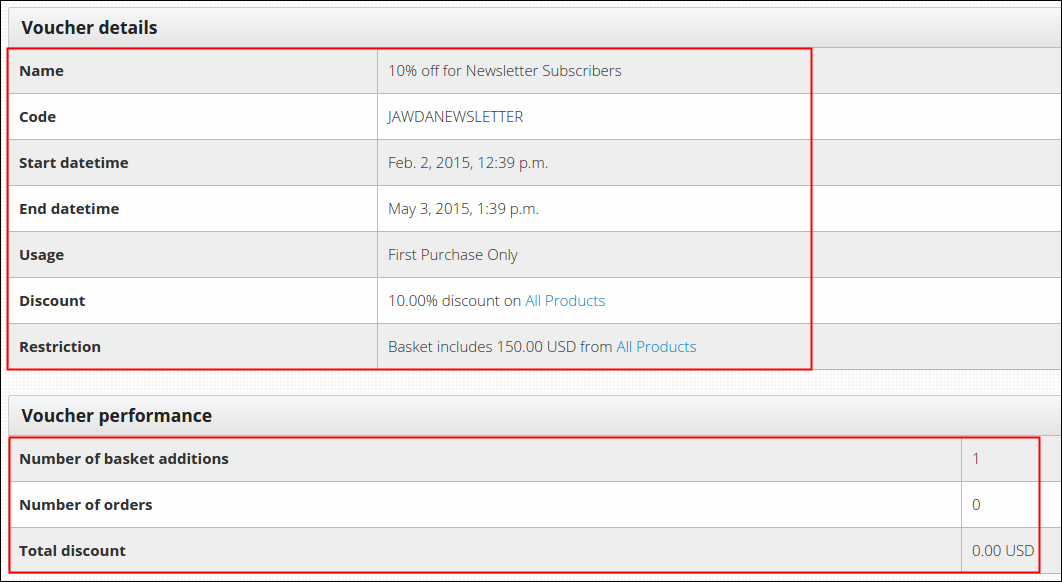
To view an existing voucher, click its Actions button and select Stats. Here's what the page looks like...
-
To update an existing voucher, click its Actions button and select Edit. Same form in creating new voucher will appear, review again the description of each fields below:
- Name- name of voucher
- Code- this is the code that will be emailed to customer and will automatically sets in once voucher condition met (ex. JAWDANEWSLETTER)
- Start Datetime & End Datetime- these fields pertains to start and end date/time of your promo duration, you can simply choose a date from the calendar and adjust the Hour and Minute (if necessary) and click Done to finish. You can also select Now button to set the calendar on this particular day.
- Usage- this is where you set when will your promo takes effect and whose entitled to use it. Conditions are as follows, see the description of each below:
- Can be used once by one customer- means the voucher can be applied for one time only by one specific customer.
- Can be used multiple times by multiple customers- the voucher can be applied numerous times by numerous customers.
- Can only be used once per customer- the voucher can be applied once for each one customer.
- Can only be used once per customer and on their first purchase only- voucher only works once on first order of each customer.
- Which Products Get A Discount?- this pertains to products that are covered by your particular voucher. The choices shown to this field are the ranges created beforehand just like the All Products, you can create a new one depending on your needs. To do so, review again the steps 1 & 2 of Creating New Voucher.
- Discount Type- this refers to types of discount that the system can only offer. Select one from these default given choices, description of each is explained below:
- Percentage off of products in range- means concerned products are entitled of particular percentage (the one entered on Discount Value, ex. 15% off) of markdown when conditions are met.
- Fixed amount off of products in range- means concerned products are entitled of specific amount (again, you will enter the amount on Discount Value field, ex. $10 off) of discount when conditions are met.
- Discount is a percentage off of the shipping cost- particular percentage off (to be entered on Discount Value field) will take place on order's shipping cost. Let us say there's a promo to every customer that 'for every $200 worth of purchase, 50% off will set in on shipping cost'. If i met the condition and my shipping cost amounts to $30 then final shipping cost would result to $15 after the discount ($30*.50(%off)= $15).
- Discount is a fixed amount of the shipping cost- same goes with just mentioned discount type (third item), the only difference is that discount is in amount basis, not percentage. Let's rephrase the cited promo earlier, 'for every $200 worth of purchase, $20 off will set in on shipping cost'. Again, let's say i met the condition and shipping cost amounts to $45, final shipping cost would be $25 after the discount ($45-$20(off)= $25).
- Get shipping for a fixed price- this discount offers an opportunity to set a particular price (to be entered on Discount Value field) on order's shipping cost when conditions are met. (Ex. 'for every $300 worth of purchase, you name the amount of your shipping cost', in some way this is similar to free shipping promo)
- Discount Value- this is the percentage or amount of discount, whatever you enter on this field applies to your selected Discount Type.
- Restriction Range- this enables you to set the limit of a voucher's scope, this and Which Products Get A Discount? usually has the same value.
- Restriction Type- types of conditions that should meet the Restriction Value. System has three default types and they are as follows:
- Depends on number of items in basket that are in condition range- effectivity of discount relies on reaching the aim quantity (the one you set on Restriction Value field) of items in basket. It is very important to meet this certain number of item before discount sets in. (Ex. 'Get a total of 10 items in shopping bag and get a free shipping')
- Depends on value of items in basket that are in condition range- not so different with above mentioned type, what differs is that this relies on meeting the set amount (on Restriction Value field) of basket cost, not its quantity. (Ex. 'Spend $300 worth of items and get a 50% off on shipping cost')
- Needs to contain a set number of distinct items from the condition range- requirement: reach a certain quantity of items under pre-selected category and you'll be entitled of the discount. Set the aim quantity on Restriction Value field and pre-select the category on Which Products Get A Discount? and Restriction Range fields. (Ex. 'Buy 100 cards from Veritas Greeting Cards and get a free shipping')
- Restriction Value- minimum quantity or amount of shopping basket, whatever you enter on this field applies to your selected Restriction Type.
After you finish updating the voucher, click Save.
-
To delete an existing voucher, click its Actions button and select Delete. A message will appear confirming your action, click Delete to continue or Cancel to return to the menu.