Changing the Image of a Category Link
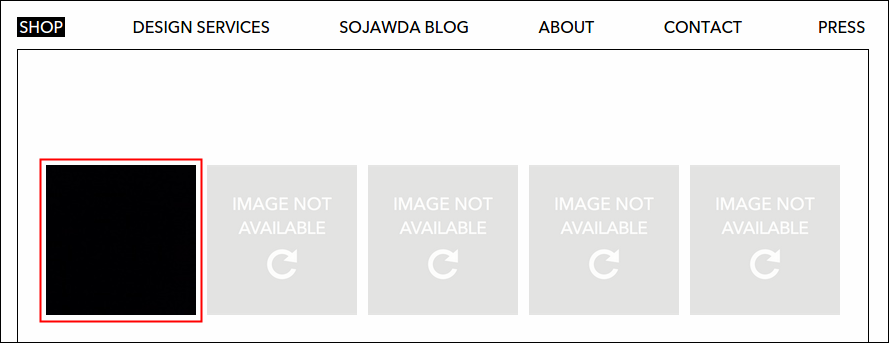
Once you entered a new category under Shop menu, an image link will automatically display on Shop page. Currently, Shop contains 5 categories namely Art, Collaborations, Finds, The Jawline Collection and Veritas Greeting Cards. Each are now represented by an image that links to its respective pages when clicked, you may still use the drop down menu if you want to. To change the image of a category, read the following guideline.
-
As always, log in using Admin credentials.
-
Go to Dashboard, Catalogue then select Categories.

-
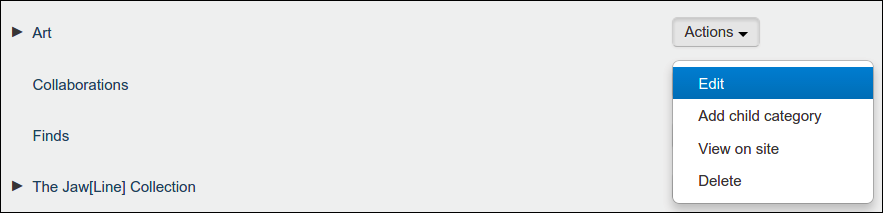
You should be now facing the Category Management page, all of created categories are listed here. From the list, select the category that you wish to update, click its Actions button and select Edit.
-
Just like creating a category or child category, same form will display. Go to the middle part of the form, click Choose File button and then locate the image that you want to upload. Name of the selected image should be now shown beside the Choose File button.

-
Click Save. Return to the main site, the image that you just uploaded should be displayed by now just like this: