Generating a Report
System can generate seven different types of report that you can either view on dashboard or download (will discuss later). To begin, follow the instructions below:
-
Log in using Admin credentials.
-
Go to Dashboard menu and from then click Reports. This will lead you to Reporting Dashboard page where you can find a form with the following fields:
- Report Type- a category of report that you can select from the list
- Date from and Date to- initial and end date of reports coverage

-
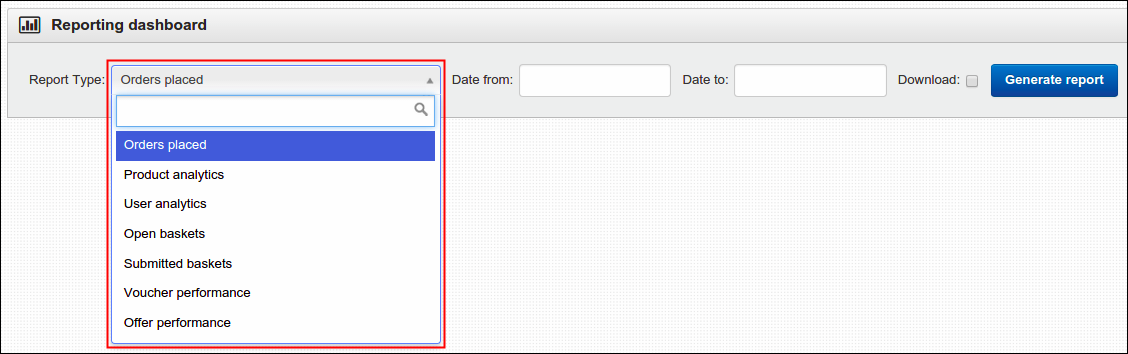
On Report Type, select one from the seven pre-defined choices. See description of each below:
- Orders Placed- refers to made orders, when selected, this will display the Order Number, Name & Email of customer who bought the item, Total & Date Placed of each order. You may as well click its View button to see more details about the order.
- Product Analytics- product statistics, this presents how many Views, Basket Additions and Purchases the item got.
- User Analytics- similar with what described above, the only difference is that this displays customer statistics such as their Product Views, Total Spent and other alike details.
- Open Baskets- pending orders, these are the orders that haven't proceeded yet to checkout process.
- Submitted Baskets- shows the duration of a basket from the time it was created until its submission.
- Voucher Performance- displays vouchers performance such as number of times voucher is added to a basket, used in an order and total discount gathered from the voucher.
- Offer Performance- similar to what discussed above, this displays the total discount gathered from an offer.
-
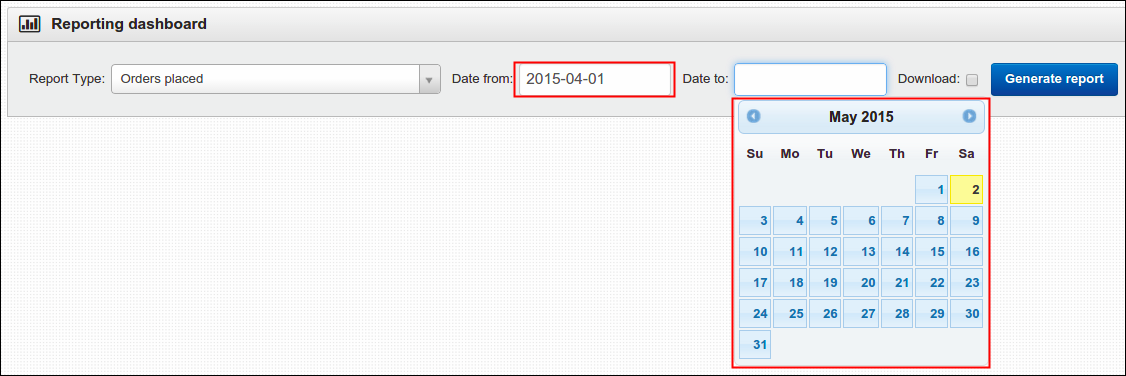
On Date from and Date to, select your preferred date from the calendar.
-
To finish, click the Generate report button. Results will display on the same page depending on which type of report you selected and chosen start date and end date.
Downloading a Report
If you want to have a copy of the reports that you produce through Reporting Dashboard then that is very easy to do. Simply follow the same procedures above, summary of that are as follow:
-
As always, log in using your Admin credentials.
-
From then, click the Dashboard menu, from Dashboard select Reports.
-
Reporting Dashboard page will display with the same form that was discussed earlier. On Report Type field, select one kind of report that you wish to have a copy, set the coverage date on Date from and Date to and then most importantly toggle the Download option. Click Generate Report button afterwards.

A file will automatically downloaded unto your computer, remember the name of your file and locate it on your Downloads folder. You may also click the file from the time it downloads and prompted in your screen.